You can log in to Qreety here using your email address. If you’ve forgotten your password, simply click the “Forgot password?” button on the login page, and we’ll send you instructions via email to reset it.
reCAPTCHA
We use Google reCAPTCHA to protect Qreety from spam and abuse. A “CAPTCHA” is a simple test designed to distinguish between humans and bots. It’s easy for people to solve but difficult for bots and malicious software to crack.
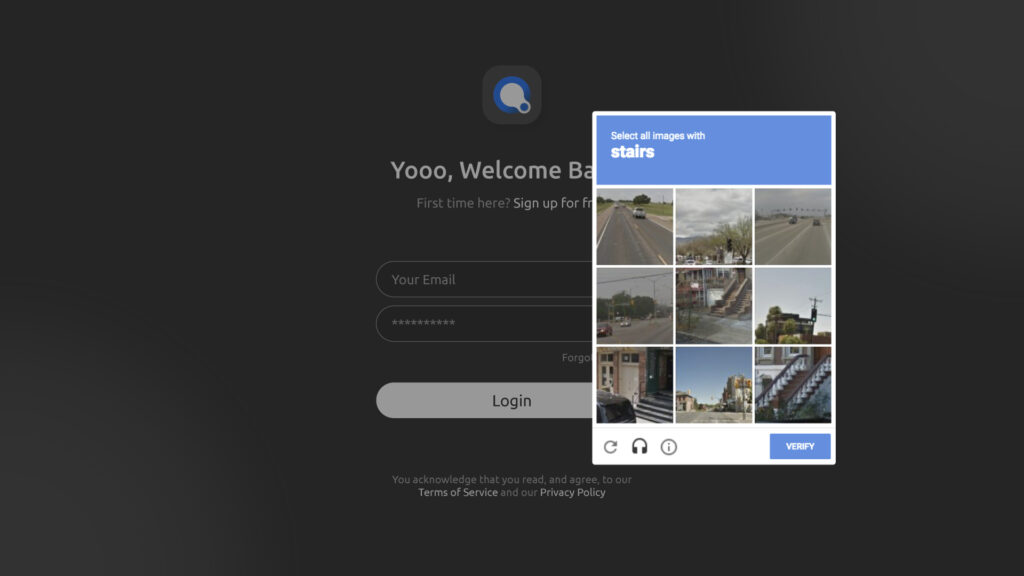
Sometimes CAPTCHAs can be overly sensitive and block legitimate users too. These issues are often browser-specific, and the following steps may help resolve them:
1. Cookie Settings — In Chrome, go to Settings, under “Privacy and Security,” click on “Cookies and other site data,” then “Allow cookies.” In Safari, go to “Preferences,” then “Privacy,” and uncheck “Block all cookies.” For other browsers, a quick Google search will show you how to enable cookies.
2. Clear Browser Cache — Clearing your cache can often help. Instructions for Chrome, Firefox, Safari, Edge, iOS, and Android can easily be found here and online .
3. Update Your Browser — Ensure your browser is up-to-date with the latest software here. You can check for updates in your browser’s settings.
4. Try a Different Browser — If the issue persists, try logging in with a different browser or device.
Two-Factor Authentication (2FA)
Two-factor authentication (2FA) is enabled by default for all users. When you log in to Qreety, we’ll send an authentication token to your registered email. You’ll need to either enter that code or click the Login button in the email to access your account. This extra layer of security helps protect against unauthorized access, even if your credentials are compromised.
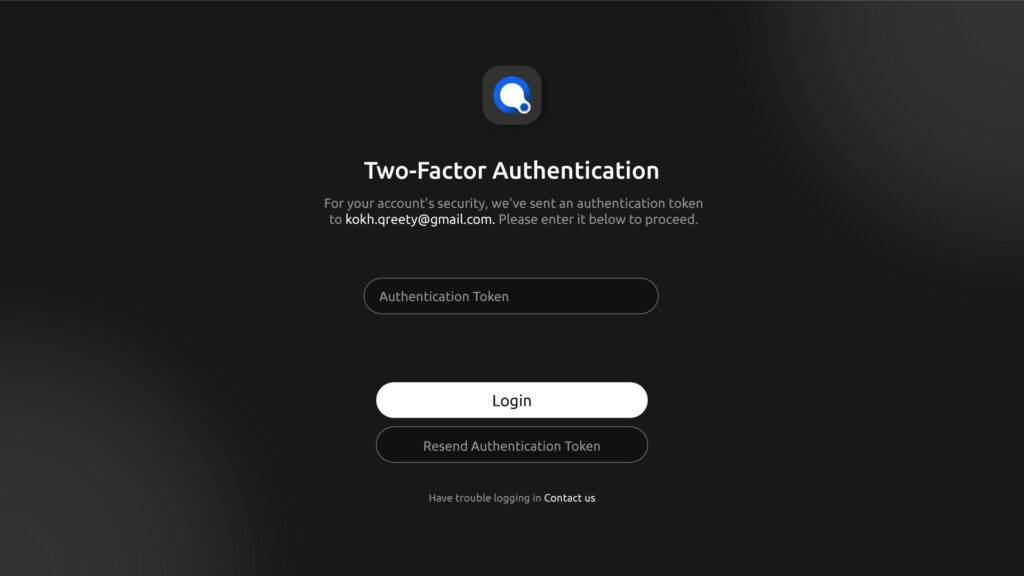
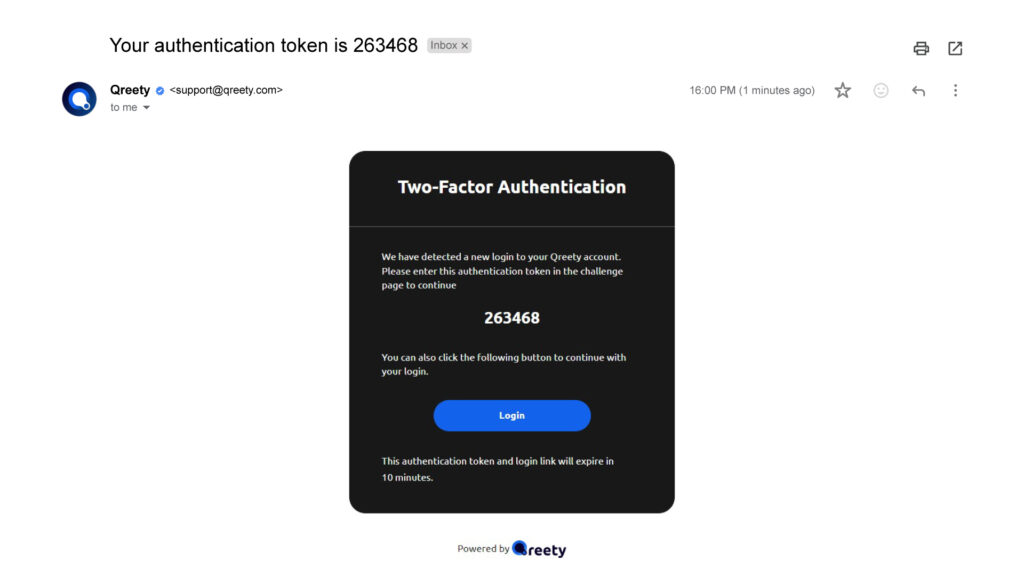
Note: For security reasons, if you’re requesting a change to your account’s 2FA settings, you must contact us from the email associated with the account. If you don’t have access to this email, you’ll need to provide the following details
For Vendor Accounts:
- All Registered Store Names
- Last three added Digital Products
- Registered Bank Name & Bank Account Number
For Client/Buyer Accounts:
- Name of the Recent Purchased Product
- Date of purchase
- Payment method: Card brand + last 4 digits (e.g., VISA *1111) or your PayPal ID
We will proceed with your request only after verifying this information.
Last Updated on September 16, 2024